

How to remove redirect virus from wordpress website?
Redirecting virus in worpress can affects your complete online presence.
It usually attacks on the files under theme folder. You need to scan all the files for unknown code as i mentioned in the video.
A plugin name “File manager” can help you to edit files. you can download it from https://wordpress.org/plugins/file-manager-advanced/
Sometimes it not allow you to enter in admin backend from where you can install file manager and remove it. That stage is really dangerous.
For that, you need to take over the web hosting server, you will get a inbiuld file manager from the hosting software, file structure will be same,
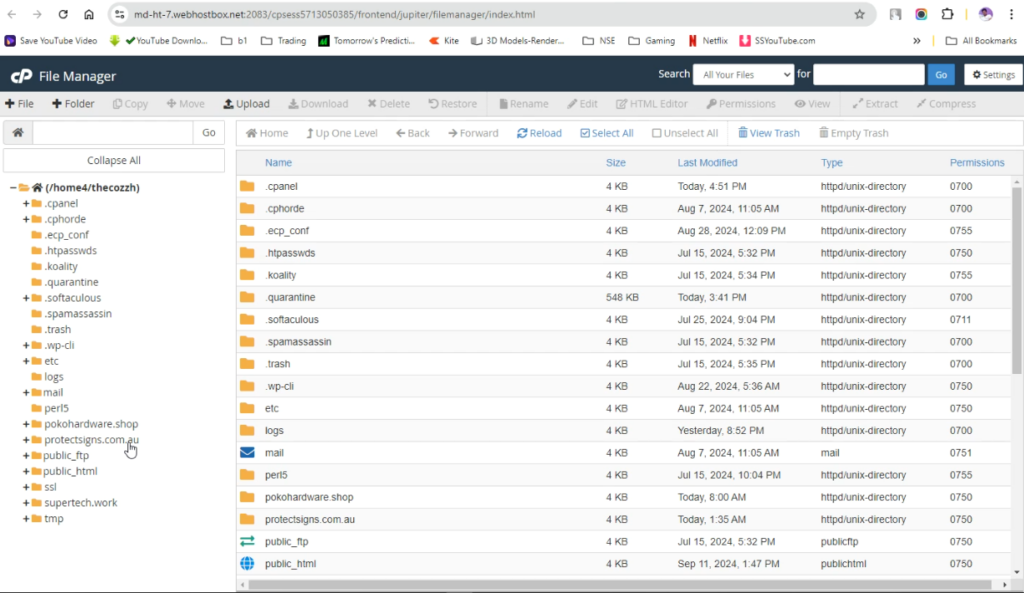
you can explore the files using these steps:
- natigate to public_html folder
- click on domainname
- open wp-admin folder
- open themes folder
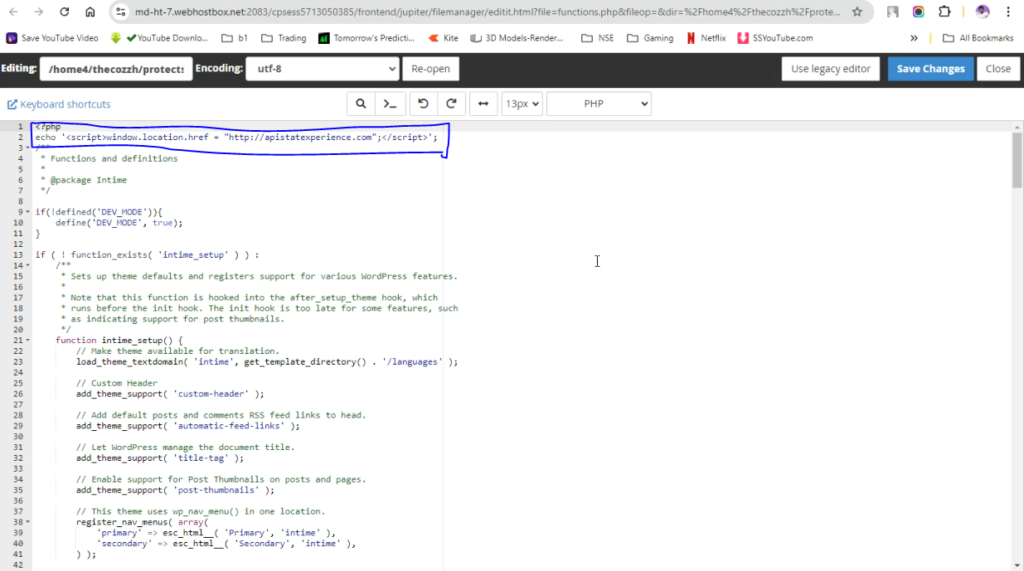
- there you will get function.php file, right click n it and click edit.
- now you need to look for unknown code or different structure that is usually found in every wordpress file.
- don’t remove, just comment that code and check the website.
- remove it if website works.
Step By Step Guide
A redirect virus in WordPress is a type of malware that forces visitors to be redirected to spammy, fraudulent, or dangerous websites. These infections are often caused by compromised plugins, outdated themes, malicious scripts, or server-level intrusions.
If your site is redirecting users, loading pop-ups, or generating strange links, you must act quickly — these infections can destroy SEO, harm visitors, and cause Google to blacklist your domain.
This guide walks you through exact steps to detect, remove, and prevent redirect malware in WordPress.
- Identify the Signs of a Redirect Virus
Common symptoms include:
Users sent to random ads or adult sites
Redirects only on mobile devices
Strange JavaScript loading in your site’s source code
Unknown admin accounts appearing
Sudden traffic loss + Google Search Console warnings
Security plugins showing infected files
If you notice any of these, start the cleanup immediately. - Put Your Site Into Safe Mode
Before making changes:
a. Back up your website
Use your hosting panel, UpdraftPlus, or another backup tool.
Backup files and the database.
b. Temporarily disable caching & CDN
Cloudflare, WP Rocket, etc. can show cached malware even after it’s removed. - Scan Your Website for Malware
Use one or more trusted scanners:
On-site scanners:
Wordfence
Sucuri Security
MalCare
iThemes Security
Remote scanners:
Sucuri SiteCheck
Quttera
VirusTotal (for suspicious files)
These scanners will typically detect:
Injected JavaScript
Malicious PHP code
Modified WordPress core files
Unknown files in /wp-content/
Backdoors hidden in themes or plugins
Make a note of all infected files. - Remove Malicious Code Manually
If you’re comfortable editing files, follow these steps:
a. Replace WordPress core files
Download a fresh copy of WordPress from WordPress.org.
Upload and overwrite:
/wp-admin
/wp-includes
Do not overwrite /wp-content/.
b. Inspect your theme and plugin files
Look for suspicious code in:
functions.php
header.php
footer.php
wp-config.php
Any file ending with .php that shouldn’t be there
Common malicious code patterns:
Delete the injected lines or restore the file from a clean backup.
c. Remove unknown files
Check these directories carefully:
/wp-content/uploads/
/wp-content/themes/
/wp-content/plugins/
If you see oddly named files like:
wp-admin.php inside /uploads/
.ico or .jpg files containing PHP code
Random folders like /wp-temp/, /cache/, /old/
Delete them — they are often backdoors.
- Remove Malicious Users
Go to Users → All Users.
Delete:
Unknown administrators
Accounts with suspicious usernames
Recently created accounts that you didn’t make
Remote attackers often create hidden admin accounts. - Clean the Database (Very Important)
Redirect malware often hides in the database, especially in:
wp_options
wp_posts
wp_postmeta
Look for:
Scripts injected into post content
Hidden